> ## Documentation Index
> Fetch the complete documentation index at: https://docs.opencanva.co/llms.txt
> Use this file to discover all available pages before exploring further.
# Build and export your first Canvas workflow
> Connect Text to Markdown Export and produce an exact ready file in under eight minutes.
Build a two-node workflow that turns a short activation brief into `Atlas-activation-brief.md`. It takes under eight minutes and uses no generation credits.
This is a portable workflow proof—not a presentation-ready deck. The useful pattern is **add → connect → run → inspect**, which you can apply to richer pitch work later.
## Before you start
Open a Canvas and keep these fabricated notes nearby:
```text theme={null}
Atlas Auto desert launch
Audience: design press and invited creators
Moment: dusk reveal across a mirrored plinth
Deliverables: arrival tunnel, hero stage, social capture zone
Constraints: premium, low-waste, no visible truss
```
You are finished when the latest Export run says **completed** and its ready File resource is named exactly `Atlas-activation-brief.md`.
## Build the workflow
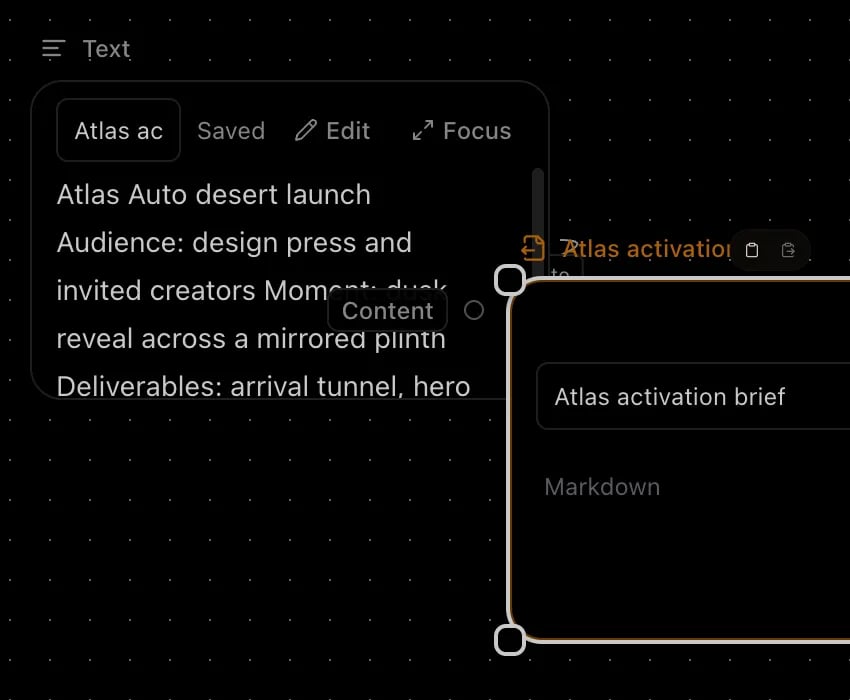
1. Select **Add node**, choose **Text**, and paste the five supplied lines. Set **Text node display label** to `Atlas activation brief`.
2. Add an **Export** node. Drag the Text node's output port to the Export node's **Content** input port.
3. Set **Export title** to `Atlas activation brief` and keep **Export format** set to **Markdown**.
4. Select **Run export**. Open the run inspector and wait for the latest run to show **completed**.
### Walkthrough transcript
The Text node contains the five-line Atlas Auto brief and is labeled `Atlas activation brief`. Its output is connected to the Export node's Content input. The Export node has the same title and Markdown format. Selecting Run export creates a completed run, and the result is the ready file `Atlas-activation-brief.md`.
## Check the result
In the run inspector, select the latest Export run and confirm:
* Status is **completed**.
* The associated File resource is **ready**.
* The filename is exactly `Atlas-activation-brief.md`.
* Opening or downloading the file shows the five supplied lines.
The Markdown file includes its title as a heading above the supplied notes. That heading does not replace or alter any of the five input lines.
## Troubleshooting
### Run export is disabled
Connect the Text node's output to the Export node's **Content** input. A visible line should join the two ports.
### The filename is `Canvas-export.md`
Set **Export title** to `Atlas activation brief`, then run the Export node again. Changing only the Text node label does not rename the file.
### No result appears
Open the run inspector and select the latest run. Wait for **completed**. If the run fails, keep the Canvas open and retry after the worker or connection recovers; do not create a second export node to hide the failed run.
Apply the same add, connect, run, and inspect pattern to your current pitch work—or return to the Canvas tab you already have open.
 ## Before you start
Open a Canvas and keep these fabricated notes nearby:
```text theme={null}
Atlas Auto desert launch
Audience: design press and invited creators
Moment: dusk reveal across a mirrored plinth
Deliverables: arrival tunnel, hero stage, social capture zone
Constraints: premium, low-waste, no visible truss
```
You are finished when the latest Export run says **completed** and its ready File resource is named exactly `Atlas-activation-brief.md`.
## Build the workflow
1. Select **Add node**, choose **Text**, and paste the five supplied lines. Set **Text node display label** to `Atlas activation brief`.
2. Add an **Export** node. Drag the Text node's output port to the Export node's **Content** input port.
3. Set **Export title** to `Atlas activation brief` and keep **Export format** set to **Markdown**.
4. Select **Run export**. Open the run inspector and wait for the latest run to show **completed**.
### Walkthrough transcript
The Text node contains the five-line Atlas Auto brief and is labeled `Atlas activation brief`. Its output is connected to the Export node's Content input. The Export node has the same title and Markdown format. Selecting Run export creates a completed run, and the result is the ready file `Atlas-activation-brief.md`.
## Check the result
In the run inspector, select the latest Export run and confirm:
* Status is **completed**.
* The associated File resource is **ready**.
* The filename is exactly `Atlas-activation-brief.md`.
* Opening or downloading the file shows the five supplied lines.
The Markdown file includes its title as a heading above the supplied notes. That heading does not replace or alter any of the five input lines.
## Troubleshooting
### Run export is disabled
Connect the Text node's output to the Export node's **Content** input. A visible line should join the two ports.
### The filename is `Canvas-export.md`
Set **Export title** to `Atlas activation brief`, then run the Export node again. Changing only the Text node label does not rename the file.
### No result appears
Open the run inspector and select the latest run. Wait for **completed**. If the run fails, keep the Canvas open and retry after the worker or connection recovers; do not create a second export node to hide the failed run.
## Before you start
Open a Canvas and keep these fabricated notes nearby:
```text theme={null}
Atlas Auto desert launch
Audience: design press and invited creators
Moment: dusk reveal across a mirrored plinth
Deliverables: arrival tunnel, hero stage, social capture zone
Constraints: premium, low-waste, no visible truss
```
You are finished when the latest Export run says **completed** and its ready File resource is named exactly `Atlas-activation-brief.md`.
## Build the workflow
1. Select **Add node**, choose **Text**, and paste the five supplied lines. Set **Text node display label** to `Atlas activation brief`.
2. Add an **Export** node. Drag the Text node's output port to the Export node's **Content** input port.
3. Set **Export title** to `Atlas activation brief` and keep **Export format** set to **Markdown**.
4. Select **Run export**. Open the run inspector and wait for the latest run to show **completed**.
### Walkthrough transcript
The Text node contains the five-line Atlas Auto brief and is labeled `Atlas activation brief`. Its output is connected to the Export node's Content input. The Export node has the same title and Markdown format. Selecting Run export creates a completed run, and the result is the ready file `Atlas-activation-brief.md`.
## Check the result
In the run inspector, select the latest Export run and confirm:
* Status is **completed**.
* The associated File resource is **ready**.
* The filename is exactly `Atlas-activation-brief.md`.
* Opening or downloading the file shows the five supplied lines.
The Markdown file includes its title as a heading above the supplied notes. That heading does not replace or alter any of the five input lines.
## Troubleshooting
### Run export is disabled
Connect the Text node's output to the Export node's **Content** input. A visible line should join the two ports.
### The filename is `Canvas-export.md`
Set **Export title** to `Atlas activation brief`, then run the Export node again. Changing only the Text node label does not rename the file.
### No result appears
Open the run inspector and select the latest run. Wait for **completed**. If the run fails, keep the Canvas open and retry after the worker or connection recovers; do not create a second export node to hide the failed run.